In this blog post, I’ll explore what is required to thoroughly test push notifications in mobile apps.
I’ll start by exploring the functionality behind these notifications and then provide you with the comprehensive checklist I use for testing them. The checklist covers various reception and navigation scenarios, ensuring your app always delivers a seamless user experience.
Notification Types
Mobile apps support two kinds of notifications—local and remote (push) notification types. Local notifications do not rely on an internet connection or any push notification service. Instead, they are triggered from within the app. The app’s code creates these notifications when they should be displayed and delivers them on the same device. Push notifications, however, are sent by a remote server and directed to specific devices on which the app is installed.
Sample App
Throughout the rest of this post, I’ll present a real mobile app that was built by the Trailhead team. In offline mode, when the app receives real-time data from a Bluetooth-connected device that falls outside the desired range, the app creates a local notification for the user. In online mode, the user gets remote notifications from a server creating push notifications instead.
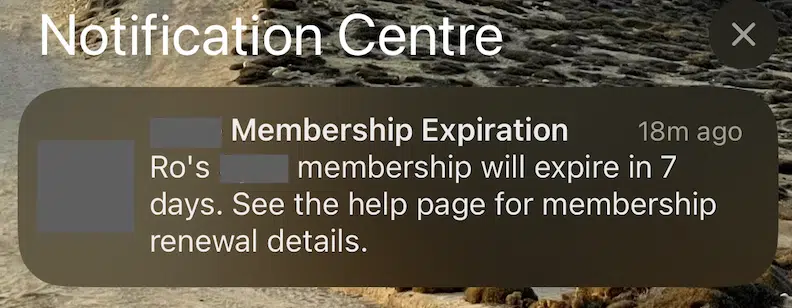
The app also uses push notifications to inform the user when it is a specific number of days before the expiration of their paid subscription and when they are online.
For the user, there is no difference in the appearance of a local or remote notification. They all look the same on a given device, though they may differ from one mobile OS to another.
How Do Push Notifications Work?
iOS requests permission from the user to send push notifications when a user first starts interacting with the app. The user can either allow or deny these notifications.
Android 12 and earlier versions subscribe to notifications by default, and users can later choose to opt-out in the settings. However, in Android 13 and later, apps must now ask for permission from users before sending notifications, as the app’s notifications are turned off by default.


When a user installs an app and grants permission for push notifications, the operating system registers the user’s device with a push notification service (Firebase Cloud Messaging for Android or Apple Push Notification Service for iOS). The notification service generates a unique device identifier (token) which allows further communication to target that specific device.
As soon as the app receives the token from the mobile OS push platform, it can send this token to its own server for future communication. When an event occurs on the server that requires notifying the user, the server can then generate a notification using the token and send it to the notification service. The notification service, in turn, sends the push notification over the internet to the installed mobile app.
Testing Push Notifications
To thoroughly test notifications in your mobile apps, I suggest dividing the testing into two parts:
- Testing the reception of push notifications, and
- Navigating through them under specific conditions
To receive a push notification, the user must be logged into our app. The authorized user is used in the checklist provided below by default. The behavior of how the notifications are presented depends on how you handle them in your app, you can customize the behavior according to your app’s design and user experience preferences. When a user taps on a push notification, the app should open and bring the user to the relevant section or content associated with the notification.
The checklist outlines various scenarios for testing the reception of push notifications:
- Receiving a push notification when the application is running in the foreground.
- Receiving a push notification when the application is running in the background.
- Receiving a push notification when the application is not running.
- Receiving a push notification when the application is reinstalled, the device is restarted, or the operating system is updated ensures that a valid token is used.
- Test how the app handles push notifications when the user is using multiple devices simultaneously.
- Test scenarios in which the user has declined permission for the app to send notifications.
- Test scenarios in which the user has turned off notifications for the app.
- Sending push notifications when logging in with different users into the app ensures that notifications are personalized and delivered to the respective users.
- Sending the push notification when the app is running in offline mode. In our case, we generate local notifications during offline mode. When the user returns to online mode, we ensure they won’t receive duplicate notifications once data is sent to the server.
- Triggering a push notification for users who have logged out.
- Check if the app still shows notifications when you log out and log back in without application relaunch. If you log out, the app should stop showing any notifications, whether they are local or push notifications. This means that if the user received notifications before logging out, they should not be visible anymore after the logout. Notifications should resume once the user logs back in.
- Ensure that the push notification payload content aligns with the expected format.
- Ensure that push notifications are displayed correctly in different languages and locales.
- Test the handling of silent push notifications that don’t display a message but trigger background tasks. These are notifications that don’t show a message but make the app do things in the background without interrupting the user.
Here is my list for testing proper navigation via a notification:
- Navigate through a push notification when the application is running in the foreground.
- Navigate through a push notification when the application is running in the background.
- Navigate through a push notification when the application is not running.
- Navigate through a push notification when there is no internet connection.
Summary
Push notifications serve as a quick way for apps to communicate with users who aren’t currently in the app. Testing them well is crucial to ensuring your users always receive these important notifications and can interact with them successfully, even in non-optimal scenarios.
By testing in various situations, such as when the app is open, closed, or when there’s no internet, we can identify and fix any problems that may exist and create apps that have more reliable notifications.