This blog is presented as a part of C# Advent 2025. Follow the link to check out the rest of the excellent C# and .NET content coming out in 2 blogs per day between December 1 and 25.Many organizations today are looking to integrate AI into their existing infrastructure without completely rewriting everything. In this blog post, I’ll walk you through the process of adding MCP (Model Context Protocol) capabilities to your current REST APIs built in .NET, enabling seamless interaction between AI systems and your backend data and applications.
What is MCP?
MCP is an open-source, standardized protocol introduced by Anthropic. It was designed to enable AI models (like chatbots or large language models – LLMs) to interact with external systems. One of its core features is bidirectional communication, allowing AI to not only retrieve data but also perform actions, such as making updates to those systems.
The main advantage of MCP is that it bridges AI systems (such as ChatGPT or Claude) and backend systems, like databases or third-party services, creating a flexible, two-way data flow. If you’re looking to add AI functionality to your application without a complete overhaul, MCP provides a simple and effective solution.

Why Use MCP with Your .NET APIs?
At Trailhead, we often help clients modernize their tech stacks, particularly around .NET. Many of these clients already have RESTful .NET APIs implemented using ASP.NET. However, they often want to add AI capabilities without starting from scratch. This is where MCP comes in.
The goal is to integrate AI models into the APIs, enabling them to interact with data stored in existing databases or other systems. This allows AI agents to do almost anything, such as:
- Retrieve data (e.g., CRM data, sales figures)
- Update data (e.g., completing tasks or making notes)
- Provide actionable insights (e.g., sending proactive alerts about key performance indicators).
These integrations can automate mundane tasks, optimize decision-making, and provide real-time insights based on your data. And the best part? All of this can be done without rewriting your entire codebase.
How Does MCP Work with .NET APIs?
If you’re already familiar with RESTful APIs, you might be wondering how MCP differs. While REST is a widely-used architecture for inter-service communication, MCP is optimized for AI-to-system communication.
Here’s a comparison between the two:
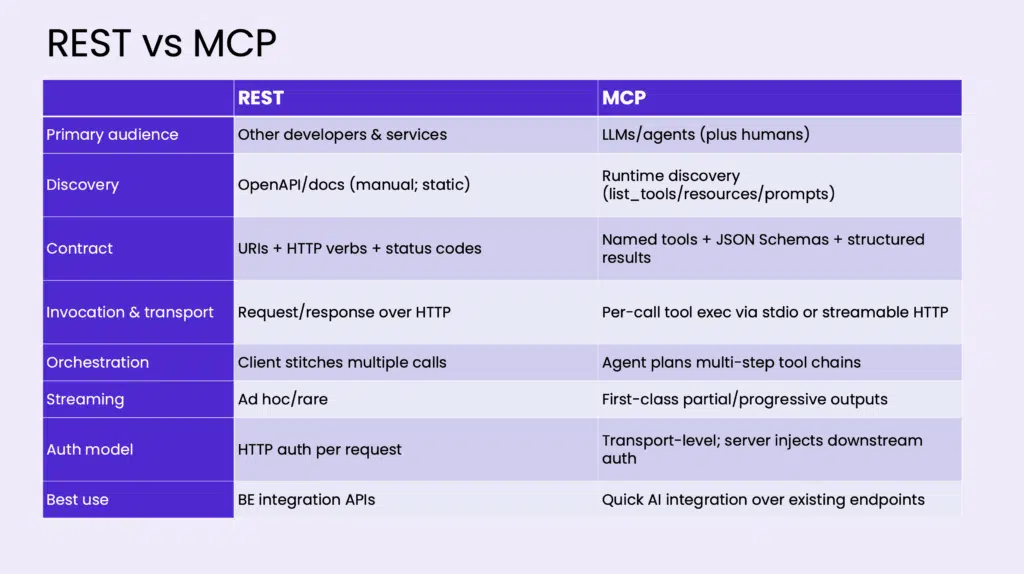
Audience:
- REST: Primarily used by developers for service integrations.
- MCP: Designed for AI models and agents to interact with backend systems. It’s built for easier integration with non-technical users and systems.
Transport:
- REST: Communication typically happens over HTTP, using methods like GET, POST, PUT, DELETE.
- MCP: Can use standard I/O for local communication, or streamable HTTP for remote communication, which supports real-time data exchange.
Discoverability:
- REST: Requires tools like OpenAPI (Swagger) for documentation.
- MCP: Automatically discovers available tools, resources, and prompts at runtime, making it more dynamic.
Use Case:
- REST: Great for server-to-server or server-to-client communication.
- MCP: Best suited for integrating AI agents with backend systems like CRMs, databases, or even third-party services.
Adding MCP to Your .NET API
To demonstrate how MCP can be integrated with your existing .NET APIs, let’s go through the steps involved. We will use .NET 10 and the MCP C# SDK to set up a basic MCP server.
Step 1: Install MCP SDK and Set Up the Server
Start by installing the MCP SDK in your .NET project. The SDK provides all the necessary tools to create a server that can interact with AI models via MCP.
dotnet add package ModelContextProtocol
NOTE: At the time of the writing of this blog, MCP C# SDK is in preview, so you’ll also need the --version 0.4.1-preview.1 flag.
Now, in your Program.cs, add the following code to set up the MCP server:
builder.Services.AddMcpServer()
    .AddTransport<HttpTransport>() // For remote communication
    .ScanAssemblyForTools(); // Auto-discover tools in your project
Step 2: Create MCP Tools for Your API Endpoints
Next, we define the MCP tools that map to our existing REST API endpoints. This is done by adding specific attributes to the methods that will expose functionality to the AI system.
For example, a To-Do API endpoint could be mapped as an MCP tool:
[McpTool("Get To-Dos")]
public async Task<IEnumerable<ToDo>> GetToDos()
{
    // Logic to fetch to-dos from database
}
Step 3: Integrate with AI Models
Now that your MCP server is set up, we can integrate it with AI models, like Claude or ChatGPT. When an AI agent asks for a task (like checking the to-do list), it will use the MCP protocol to query your server.
For instance, using an AI like Claude, you can programmatically retrieve data from your to-do list:
AIModelRequest request = new AIModelRequest("Get To-Dos");
var response = await aiModel.ExecuteRequest(request);
This request will retrieve data via the MCP server, allowing the AI model to act upon it, like marking tasks as complete.
To view an entire working to-do integration in C#, check out the code from my talk on this same topic.
The Future of MCP and AI Integrations
As more systems adopt MCP, we expect to see increased collaboration between AI models and backend systems. MCP makes it easier for organizations to “AI-enable” their applications without the need for a full-scale rewrite. It helps create a future-proof architecture that can scale with new technological advancements.
Furthermore, if you’re hosting your .NET APIs in Azure, you can use Azure API Management to create an MCP wrapper around your existing REST endpoints. This can be done without writing any code, enabling faster AI integrations.
Conclusion
Integrating MCP with your .NET REST APIs brings powerful AI capabilities to your existing systems. Whether you’re building a chatbot, automating customer support, or proactively notifying users about key performance indicators, MCP provides the connectivity needed to make it happen seamlessly.
If you’d like to use the MCP C# SDK to add AI-driven functionality to your .NET apps, contact us at Trailhead and we’ll show you how to get started.