This blog is presented as a part of C# Advent 2025. Follow the link to check out the rest of the excellent C# and .NET content coming out in 2 blogs per day between December 1 and 25.Does your business operate software that sees unpredictable (or even predictable) spikes in traffic? Do these spikes give you anxiety about how your technology will perform? If you answered yes to both of these, I highly recommend that you consider load testing the performance capacity of your technology infrastructure before it becomes a production issue. System failure during the busiest seasons can cost real money and, perhaps during the end of year holidays, even ruin vacations.
Even if you anticipate similar traffic year-over-year, many variables can affect application performance. Consider these questions:
- Has anything changed on the server or cloud infrastructure hosting the software since last year?
- Has the software been modified since the last traffic spike?
- Is the application database under the same load as it was in prior years?
These factors and many others can make it dangerous to assume that your applications will perform as well for future traffic as it has done for past traffic.
So, what can we do about this? In this post we will examine using the Azure Load Testing platform to help you get in front of any performance issues that need to be dealt with ahead of anticipated heavy load.
What is Azure Load Testing?
Azure Load Testing is a cloud-based load testing service that provides a simple, scalable solution for generating a high volume of requests to simulate real load on your application. There are certainly load testing tools that can be ran from a local machine to target a specific URL, however, cloud-based solutions provide significant advantages over these. Most notably, the simulated load will be much more like the real-world traffic you might expect because cloud-based resources can expand to a much larger scale than any single machine can. Another key benefit of this service is that you don’t need to manage infrastructure—Azure handles spinning up the test engines, collecting metrics, and shutting everything down when you’re done.
Pricing
Azure Load Testing uses a pay-as-you-go model based on virtual user hours (VUH). You’re charged only for the duration of your tests and the number of virtual users you simulate, which allows you to tailor your test plan to your budget. For accurate information on pricing see the official Azure App Testing pricing page.
Prerequisites
Before you begin, ensure you have:
- An Azure subscription
- A web API, such as an ASP.NET Core API deployed somewhere (Azure App Service, Container Apps, or any accessible endpoint)
- Azure CLI or access to the Azure Portal
Creating Your First Load Test
Now let’s discuss the steps you need to take to load test using Azure Load Testing.
Step 1: Create an Azure Load Testing Resource
The Azure Portal provides a simple way to set up your resources. Navigate to the Azure Portal and search for “Azure App Testing”. Create a new resource in your preferred region. This typically takes just a minute or two to provision.

Step 2: Prepare Your Test
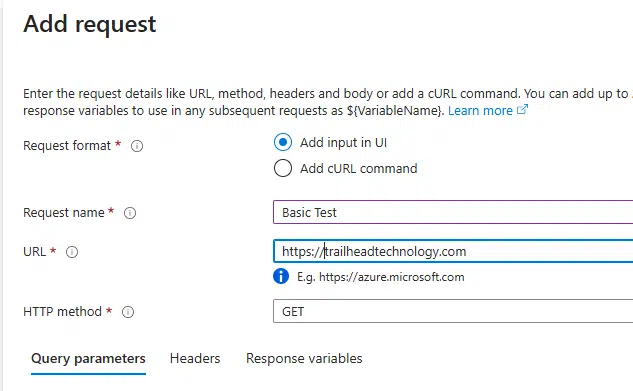
Once you log in you have a few options for testing. The simplest is to create an HTTP request using the Azure UI. This requires no prior knowledge of other tools or test plan syntax. While simple, this approach is very limited. For example, you can only test a single endpoint per test. This may be a great place to start, but most teams will quickly find this limitation frustrating.
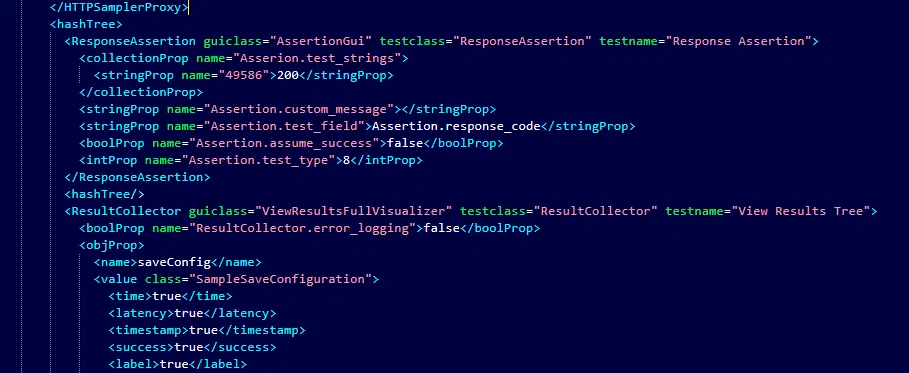
For a more comprehensive option, Azure Load Testing supports testing using the open source Apache JMeter platform, or the Locust platform. These test platforms allow you to create simple or complex test plans, specifying multiple endpoints and configuring request rates, volume, and timing for each of them. In this example we will use JMeter. JMeter test plans use a fairly straightforward XML syntax and are saved with the extension JMX. If you are like me and are allergic to hand jamming XML in the year 2025, JMeter includes a simple but functional GUI for generating the test plans. We won’t explore the GUI in this post, but rather just show a sample of a very simple test plan.
Azure Load Testing directly supports uploading a JMeter JMX file. For a simple API test, you can just create a basic script that targets your endpoints. They look like this:
Step 3: Configure and Run the Test
In your Azure Load Testing resource, create a new test and upload your JMX file. Configure the test parameters:
- Load configuration: Choose the number of engine instances (start with 1-2 for smaller APIs)
- Test duration: 5-10 minutes is good for initial tests
- Monitoring: Enable Application Insights integration to correlate load with your API metrics
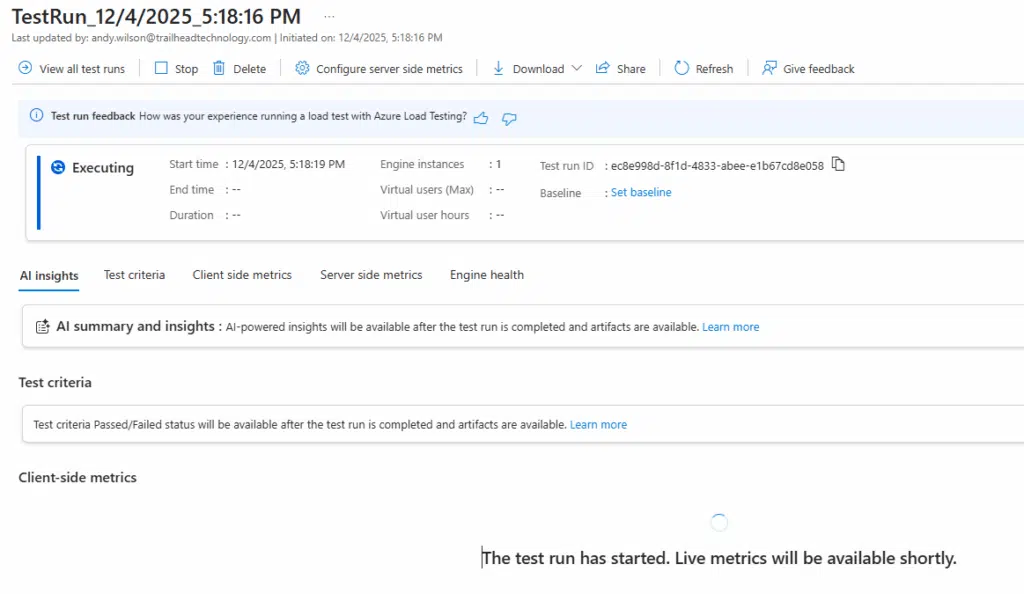
Once you have configured the test, click the run button. The only thing left for now is to wait for the results.

Analyzing Results
Once your test completes, Azure Load Testing provides comprehensive dashboards showing:
- Response time percentiles (P50, P95, P99)
- Requests per second throughput
- Error rates and failure points
- Resource utilization if you’ve connected Application Insights
Pay special attention to P95 and P99 response times—these represent the experience of your slowest users and often reveal bottlenecks that average response times mask.


Integrating with CI/CD
It may be sufficient for your use case to simply test a few times a year ahead of predictable spikes in traffic. However, if your traffic is unpredictable you will want to know early and often when there are performance issues. For these use cases Azure Load Testing supports CI/CD integration through Azure Pipelines or GitHub Actions.
You can automatically run load tests on each deployment, failing the build if response times exceed thresholds. This “shift-left” approach catches performance regressions before they reach production.
Best Practices
- Start small: Begin with modest load and gradually increase
- Test realistic scenarios: Mirror your production traffic patterns
- Monitor your database: Often the first bottleneck you’ll encounter
- Run tests from multiple regions: If you have a global user base
Conclusion
Azure Load Testing makes performance testing accessible without the overhead of managing JMeter infrastructure. By incorporating load testing into your development workflow, you can confidently scale your C# API to meet demand.
If this is something you would like some help setting up, reach out to the experts at Trailhead who are always eager to assist. Happy holidays!